


Report Templates
Report templates are pre-designed frameworks that help users create structured, professional, and visually consistent reports with ease. They provide a clear layout for organizing information—such as titles, summaries, data sections, and conclusions—while saving time and ensuring uniformity across documents. Whether used for business analytics, academic research, or project updates, these templates streamline the reporting process by offering customizable formats that accommodate charts, tables, and branding elements. By using report templates, individuals and teams can focus more on content quality and insights, rather than formatting, making communication more effective and polished.
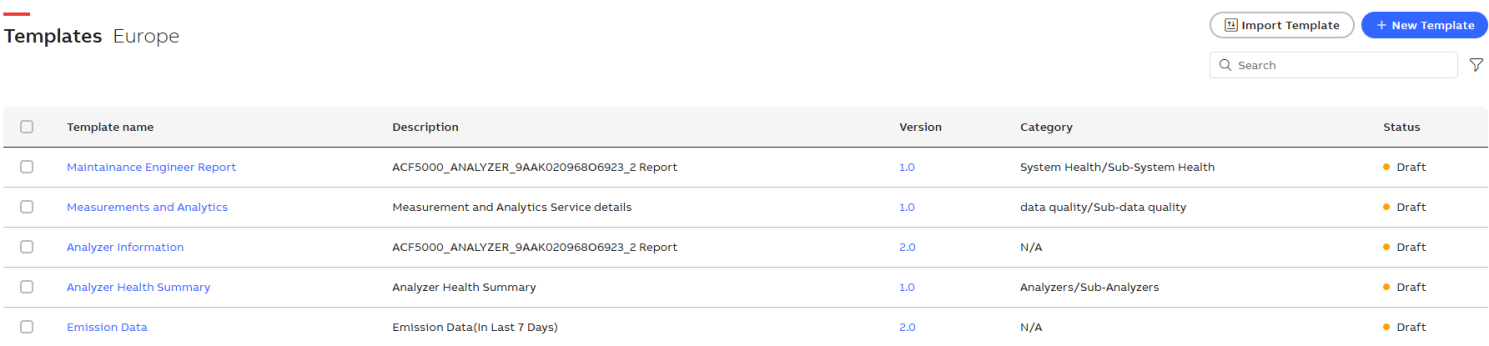
Report Templates
The following options are available in the top-right corner of the page:
Import Template: Import a template by selecting the desired location from your device or directory.
New Template: Create a new template to define custom report layouts and content structures tailored to business needs. For more information, see
Search: Search for a specific template.
Filter: Filter templates based on their category and subcategory.
-
Click Filter icon. Filter By popup appears.
-
Use Category dropdown to select the category, or use the search option to find one.
-
Use Sub-Category dropdown to select the sub-category, or use the search option to find one.
-
Click Clear All to reset all selected filters and inputs.
The following table describes the details of templates:
| Column Name | Description |
|---|---|
|
Template name |
The name assigned to the template. Click the link associated with the template name that redirects you to the Edit Template page. For more information, see |
|
Description |
Typically provides a brief explanation of the template. |
|
Version |
Specific form or release of a template that may vary across different instances. For more information, see Template Version History. |
|
Category |
Templates are typically stored under categories that reflect their purpose or usage, making it easier to organize and retrieve them. |
|
Status |
Refers to the current state of a template. |
Following are the options to manage templates:
-
Enable the checkbox next to the template.
-
Once selected, perform the following optional actions, or select all to Export and Delete templates simultaneously.
View: Enables you to preview, review, or interact with the template before it is finalized or exported. For more information, see Template View.
Edit: Modification of a report template to suit specific content, layout, or design needs.
Export: Save the template in ZIP format for download or sharing.
Delete: Remove a template or its associated components.
-
Click the value in the Version column, and Template Version History pop-up appears.
-
You can view the Template Name, Description, Category, and a table with the columns: Version Number, Date and Time, Modified By, and Summary of Changes.
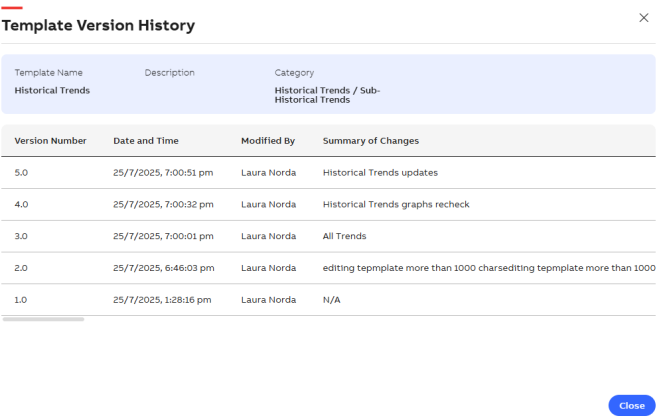
Template Version History